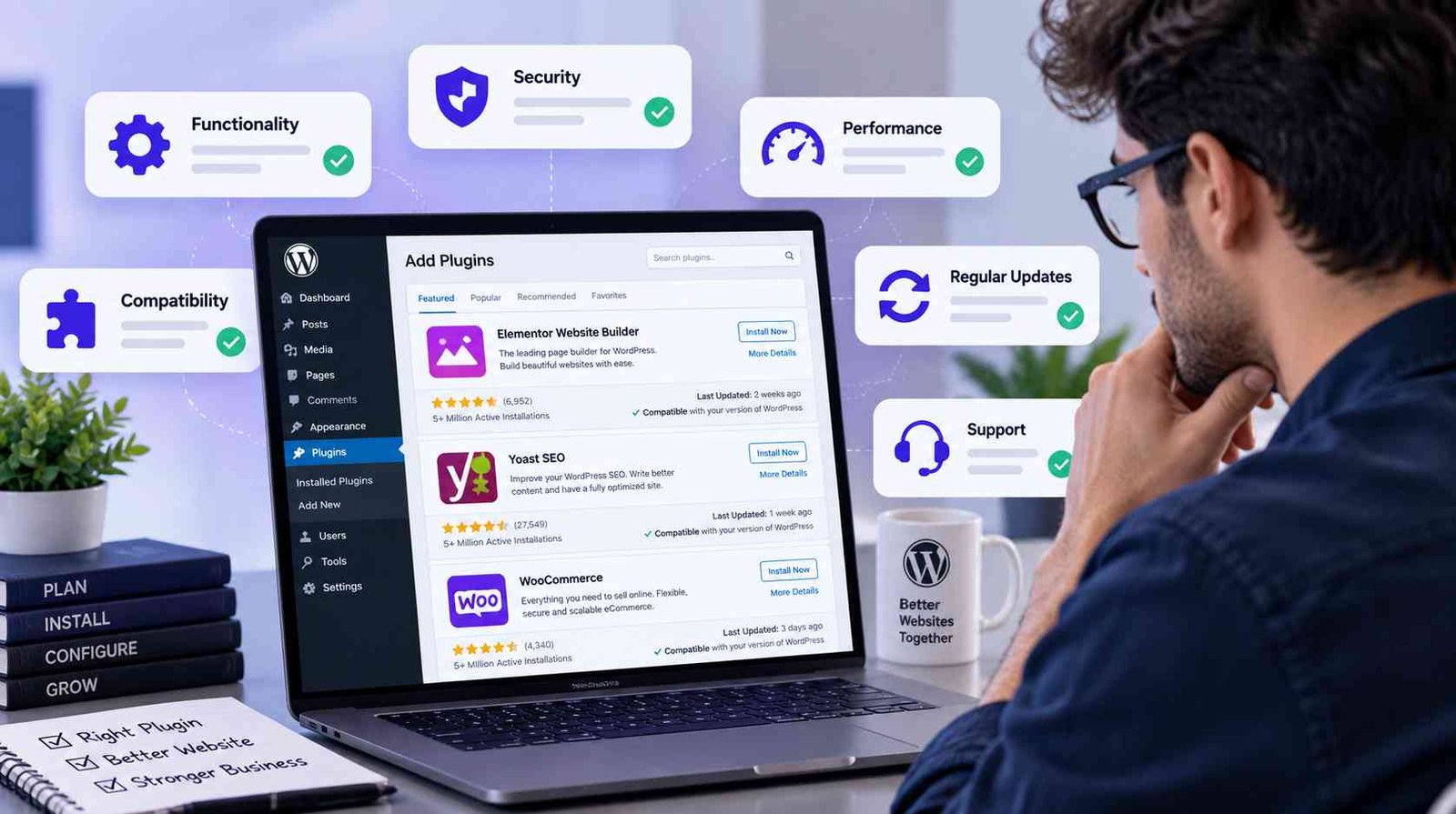
Plugins Make WordPress Powerful—But Choosing Matters
One of the biggest reasons WordPress is so flexible is its plugin ecosystem.
Plugins can add contact forms, SEO tools, security features, backups, eCommerce functionality, memberships, analytics, payment integrations, custom content, automation, and thousands of other capabilities.
The official WordPress Plugin Handbook explains that plugins are the recommended way to extend WordPress functionality without modifying WordPress core itself.
However, the ability to install a plugin with a few clicks can also make it easy to install more software than your website actually needs.
Choosing the right plugin requires looking beyond an attractive feature list.
Begin With the Problem You Need to Solve
Before searching for a plugin, clearly define the problem.
For example, “I need a plugin for WooCommerce” is too broad.
Instead, you might need to reduce steps between a product page and checkout, automatically back up specific website data, detect plugin conflicts, or create a specialized administration workflow.
A clear requirement makes comparing solutions much easier.
Avoid installing plugins simply because a feature looks interesting. Every new component introduces something else that may require updates, compatibility checks, configuration, and maintenance.
A useful plugin should solve a genuine problem.
Look at the Plugin’s Core Functionality
Many plugins advertise dozens or even hundreds of features.
More features do not automatically mean more value.
Ask whether the plugin performs its main function well. Consider how clearly the settings are organized and whether you can disable unnecessary features.
A focused plugin may sometimes be preferable to a large multipurpose plugin if it solves exactly what you need with less complexity.
This principle is especially relevant for business websites where reliability matters more than having every possible option.
Check Development and Update Activity
WordPress evolves continuously.
Themes, plugins, PHP versions, browser technologies, and WooCommerce all change over time.
A plugin that worked perfectly several years ago may no longer be suitable for a modern WordPress installation if it has been abandoned.
Before installing a plugin, check when it was last updated, whether recent compatibility information is available, and whether development appears active.
An update does not guarantee quality, but ongoing maintenance is an important signal.
After installation, continue keeping plugins updated rather than treating updates as optional maintenance.
Think About Security
Plugins run code inside your WordPress installation, so security should always be considered.
The WordPress Plugin Handbook specifically covers capability checking, validation, nonces, escaping output, and sanitizing input as important areas of secure plugin development.
The WordPress.org plugin guidelines also state that plugin developers are responsible for their plugins and that code distributed through the official directory should be made as secure as possible.
For website owners, this means choosing plugins from trustworthy sources, keeping them updated, removing abandoned software, and avoiding pirated or modified premium plugins from questionable websites.
A free download is not worth compromising your website.
Evaluate Compatibility
A plugin rarely operates in isolation.
It interacts with WordPress, your theme, PHP, hosting environment, and potentially dozens of other plugins.
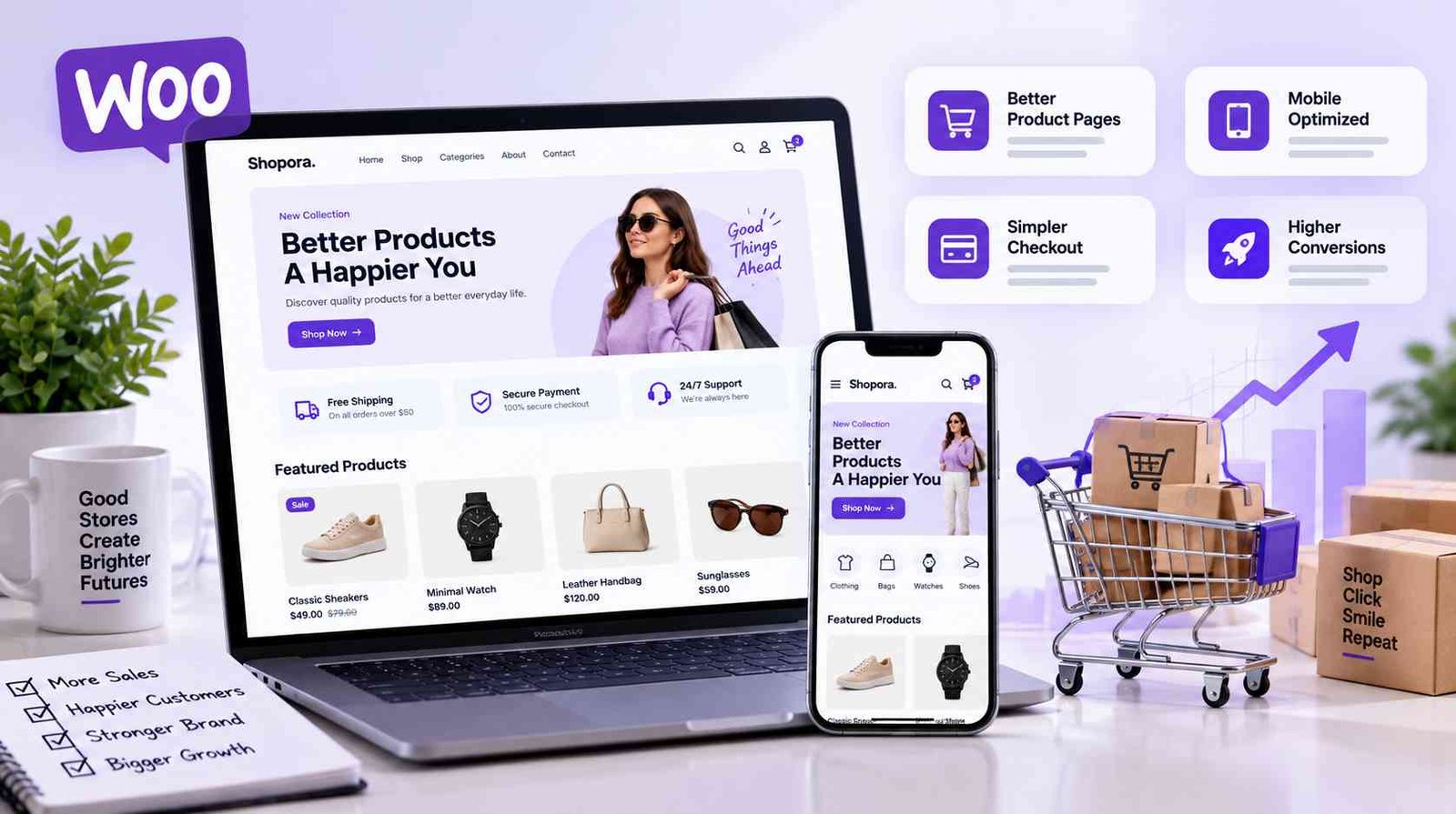
For WooCommerce websites, compatibility becomes even more important because payment gateways, subscriptions, booking systems, shipping extensions, and order-management tools may depend on specific WooCommerce functionality.
For example, WooCommerce advises checking extension compatibility when using features such as High-Performance Order Storage.
The safest approach for significant plugin changes is to test them on a staging environment before introducing them to a production website.
Consider Performance
It is common to hear that websites should use as few plugins as possible.
That advice is incomplete.
The real question is what each plugin does.
A well-developed plugin performing one focused task may have almost no noticeable impact, while another plugin might load large scripts, perform expensive database queries, or send frequent requests.
Evaluate your website before and after installing major plugins.
Watch page-loading behavior, administration speed, database activity, and resource usage.
If performance suddenly deteriorates after adding a plugin, investigate rather than immediately adding another plugin to “fix” the slowdown.
Avoid Feature Duplication
Two plugins may provide overlapping functionality without you realizing it.
For example, your optimization plugin may already include image lazy loading while another image plugin does the same thing. Your security solution might already handle a feature provided by a second plugin.
Duplicate features can create conflicts, unnecessary processing, and configuration confusion.
Periodically audit your plugin list and understand the purpose of each active plugin.
If nobody managing the site knows why a plugin exists, that is a good reason to investigate it.
Review the User Experience
A technically powerful plugin can still be frustrating if everyday tasks are difficult.
Consider who will use the plugin.
If a website will be managed by a marketing team, store manager, client, teacher, small business owner, or non-technical employee, administration usability becomes especially important.
Good plugin experiences usually provide clear settings, understandable feedback, sensible defaults, and workflows that do not require technical expertise for routine tasks.
At Codexra, this is why we view usability as part of product quality rather than simply a visual consideration.
Check Documentation and Support
Sooner or later, you may need help.
Good documentation can save hours of troubleshooting.
Before relying on a plugin for an important business function, check whether documentation explains installation, configuration, common issues, integrations, and limitations.
You should also understand what support is included.
Free plugins may rely primarily on community forums, while commercial products may include dedicated support.
Neither approach is inherently better, but expectations should be clear before the plugin becomes critical to your website.
Test Before Using It on an Important Website
Whenever possible, use a staging environment.
Test installation, activation, configuration, front-end functionality, mobile responsiveness, administration pages, forms, checkout flows, and anything else the plugin could affect.
Create a backup before making significant production changes.
Testing is particularly important when replacing an existing plugin because data structures and settings may not transfer automatically.
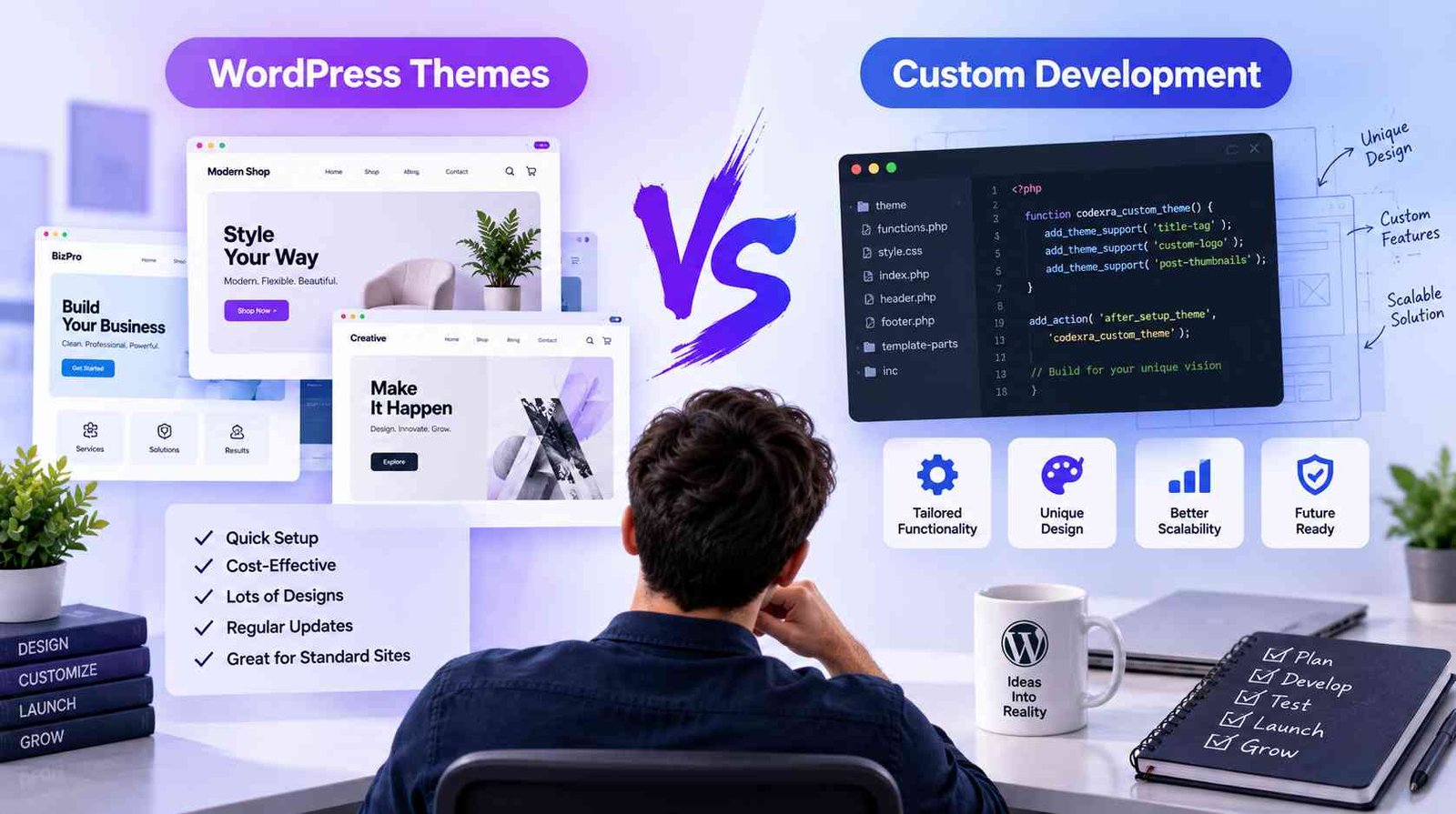
Know When Custom Development Makes More Sense
Sometimes you will not find a plugin that fits your workflow.
Installing three or four plugins and connecting them through workarounds may ultimately create more complexity than developing one focused solution.
Custom plugin development can be appropriate when you have unique business rules, specialized integrations, unusual automation requirements, or a workflow that existing plugins cannot support efficiently.
The decision should be based on long-term value, not simply the initial development cost.
Final Thoughts
The best WordPress plugin is not necessarily the most popular, the most expensive, or the one containing the most features.
It is the plugin that solves your problem reliably while fitting your existing website, workflow, security requirements, and long-term plans.
Take time to evaluate functionality, development activity, security, compatibility, performance, usability, and support before making a plugin part of your website.
At Codexra, we believe WordPress tools should solve real problems without introducing unnecessary complexity.