
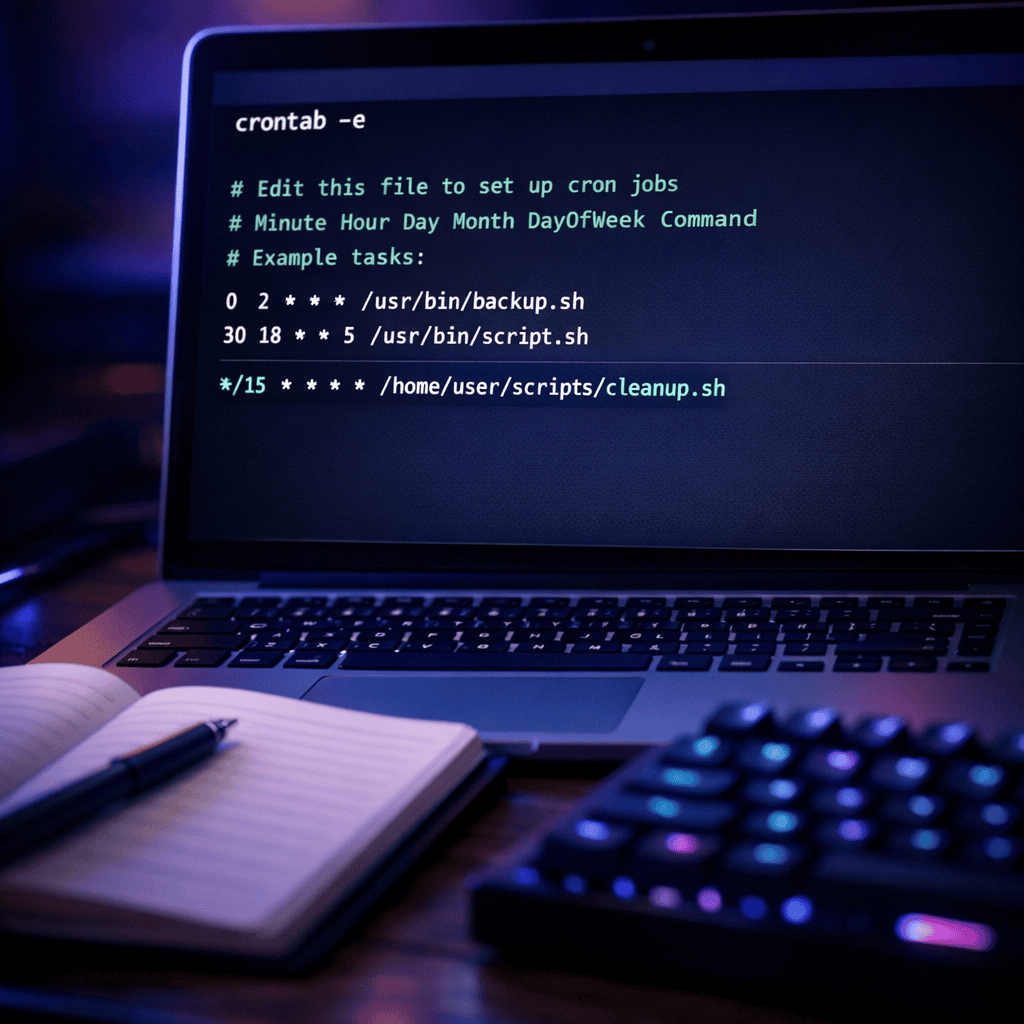
Linux Systemd Crontab for WordPress is the absolute gold standard for high-traffic enterprise systems architecture. When we onboard a heavy WooCommerce store or a high-volume publisher at Coderxa, we almost always find the native web-based job scheduler choking the server’s PHP worker pools. Every single time a visitor requests a page, WordPress checks for pending background tasks via wp-cron.php, causing massive Time to First Byte (TTFB) spikes and dragging down organic search engine crawl efficiency.
By shifting background execution entirely off the HTTP request-response cycle and handing it over to system-level daemons, we free up critical CPU resources. This architectural shift guarantees that scheduled publishing, automated email queues, and database cleanups run deterministically without penalizing real human visitors or search bots trying to index your content.
1What is Linux Systemd Crontab for WordPress?
Linux Systemd Crontab for WordPress is a systems engineering methodology that disables the default web-triggered task runner and instead uses native Linux systemd timers and crontab entries to execute WordPress background jobs via WP-CLI at exact, predictable intervals.
2The Anatomy of WP-Cron Bottlenecks
Out of the box, WordPress handles background tasks via a pseudo-cron system. Whenever a browser requests a page, WordPress fires an asynchronous HTTP request to wp-cron.php . On a low-traffic brochure site, this goes unnoticed. However, on enterprise platforms handling thousands of hits per minute, this default behavior creates a catastrophic cascade.
During a recent infrastructure audit for a major e-commerce client at Coderxa, we discovered that 35% of all PHP worker threads were perpetually locked up processing background cron tasks instead of serving active checkouts. Search engine crawlers visiting the site experienced frequent 504 Gateway Timeouts because the PHP-FPM pool was saturated with overlapping database queries triggered by random page loads. Moving away from this flawed paradigm is non-negotiable for serious platforms.
3Disabling Native Execution and WP-CLI Integration
To fix this architecture, we first have to strip WordPress of its autonomous scheduling privileges. This is achieved by defining a single PHP constant in your wp-config.php file. Placing define( ‘DISABLE_WP_CRON’, true ); right above the “That’s all, stop editing!” line completely stops WordPress from spawning HTTP requests on front-end visits.
Once disabled, background processes must be triggered externally using WP-CLI, the official command-line interface for WordPress. Instead of relying on random visitor traffic, a system-level process runner invokes wp cron event run –due-now –path=/var/www/html . This gives system administrators absolute control over execution frequency, user permissions, and resource consumption boundaries.
4Step-by-Step Guide to Deploying Linux Systemd Crontab for WordPress
Deploying a robust background processing architecture requires precise configuration across your Linux operating system layer and application files. Follow this field-tested implementation blueprint.
Phase 1: Configure Application Constants
Open your primary WordPress configuration file and inject the disable directive:
define( ‘DISABLE_WP_CRON’, true );
Phase 2: Establish Systemd Service and Timer
Instead of relying solely on traditional cron, modern Linux distributions utilize systemd for superior logging and dependency management. Create a service file at /etc/systemd/system/wordpress-cron.service :
[Unit]
Description=Run WordPress Cron via WP-CLI
After=network.target
[Service]
Type=oneshot
User=www-data
WorkingDirectory=/var/www/html
ExecStart=/usr/local/bin/wp cron event run –due-now –path=/var/www/html
Next, create the corresponding systemd timer at /etc/systemd/system/wordpress-cron.timer to execute the service every 5 minutes:
[Unit]
Description=Run WordPress Cron Every 5 Minutes
RefuseManualStart=no
RefuseManualStop=no

[Timer]
Persistent=true
OnBootSec=2min
OnUnitActiveSec=5min
Unit=wordpress-cron.service

[Install]
WantedBy=timers.target
Enable and start your timer via terminal:
sudo systemctl daemon-reload
sudo systemctl enable wordpress-cron.timer
sudo systemctl start wordpress-cron.timer
For deeper technical references regarding OS process management and web performance optimizations, consult the Official WordPress Core Documentation and the MDN Web Docs Performance Engineering Guide.
5Expert Support & Enterprise Consulting for Linux Systemd Crontab for WordPress
Architecting resilient enterprise infrastructure requires hands-on systems expertise. If your publishing platform or WooCommerce store is suffering from mysterious performance bottlenecks, database locking, or sluggish server response times, our engineering team can help. Explore our core WordPress Engineering Services, learn more About coderxa, or book an Expert Technical Consultation directly with our lead architects today.
6Common Linux Systemd Crontab for WordPress Mistakes & Troubleshooting
Even seasoned systems engineers can run into edge cases when configuring server-level task runners. Watch out for these three critical traps:
1. File Permission Mismatches: Running WP-CLI commands as the root user instead of the web server user (such as www-data or nginx) will corrupt file ownership on uploaded media and cache directories. Always specify the correct user directive in your systemd service file.
2. Missing PHP Path Dependencies: Systemd runs in a minimal environment where $PATH variables are often stripped down. If your cron execution fails silently, ensure you are providing absolute paths to both the PHP binary and the WP-CLI phar file.
3. Overlapping Task Deadlocks: If your cron intervals are set too aggressively (e.g., every minute for heavy database syncs) while tasks take longer than 60 seconds to complete, you will spawn queue deadlocks. Always align your systemd timer frequency with the actual benchmarked execution time of your background jobs.
7Technical FAQs for Linux Systemd Crontab for WordPress
Why should I disable default wp-cron.php execution?
Default execution triggers background tasks on every front-end page view, drastically slowing down user response times, inflating TTFB, and risking server resource exhaustion during traffic surges.
Is systemd better than traditional crontab for WordPress?
Yes. Systemd offers vastly superior logging, granular dependency management, persistent timer tracking across reboots, and tighter resource isolation compared to legacy cron utilities.
What user account should execute WP-CLI background jobs?
You must always execute WP-CLI tasks under the exact same system user that owns your web root files (typically www-data, nginx, or apache) to prevent file permission permission conflicts.
How often should a production WordPress cron run?
For most high-traffic production sites, executing the cron queue every 5 to 15 minutes via a systemd timer provides the optimal balance between timely task processing and server resource conservation.
8Strategic Takeaways & Next Steps for Linux Systemd Crontab for WordPress
Implementing Linux Systemd Crontab for WordPress transforms an erratic, traffic-dependent bottleneck into a deterministic, high-performance background processing engine. By offloading resource-heavy scheduling tasks from your web application layer to the Linux operating system, you instantly protect your server worker pools, accelerate page delivery speeds, and ensure seamless search engine crawler indexing.
If you are ready to bulletproof your infrastructure and eliminate performance anxiety, reach out to the systems architecture team at Coderxa today to schedule a comprehensive technical audit.
Join the Conversation 0
Share your thoughts, questions or experience. We read every comment.
No comments yet. Be the first to share your thoughts!